
You enable keyd, move the mouse, and suddenly the pointer feels faster. The desktop’s speed slider has not changed, so why does the same mouse behave differently?
The answer can be a missing piece of metadata: the DPI declared by keyd virtual pointer. Here is how to check for that mismatch and apply a persistent workaround on a Linux desktop using libinput, particularly KDE Plasma on Wayland.
Same movement, different device
When keyd manages a mouse, it grabs the physical input device and forwards movement through a virtual pointer. Ordinary relative movement counts are forwarded without scaling, but the desktop sees a different device.
That distinction matters for two reasons:
- The desktop can apply different speed and acceleration settings to the virtual pointer.
- The physical mouse’s DPI metadata is not automatically inherited.
libinput reads DPI information from the udev property MOUSE_DPI. If that property is absent, it assumes 1000 DPI. With adaptive acceleration, DPI information affects movement normalization and the acceleration curve. Matching speed sliders alone therefore does not guarantee matching movement.
A Logitech G502 HERO setup associated with rvaiya/keyd#1247 illustrates the problem. The physical mouse reported:
MOUSE_DPI=1200@1000 *2400@1000 3200@1000 6400@1000
The asterisk selects the default, 2400 DPI, while @1000 describes a 1000 Hz report rate. The keyd pointer initially had no MOUSE_DPI property. Matching that metadata resolved the reported sensitivity difference.
This is declared metadata, not a measurement of the sensor’s current DPI. Changing it tells libinput how to interpret movement; it does not change the mouse’s hardware DPI or report rate. This workaround addresses one cause of the symptom, not every possible mouse problem.
Step-by-step workaround
Follow these steps in order. Steps 1-3 check whether the workaround applies; steps 4-6 apply it and verify the result.
1. Find the physical mouse and keyd pointer
Make sure keyd is running, then list the input-device names:
grep -H . /sys/class/input/event*/device/name
Find and note the event number for each of these devices:
- Your physical mouse.
keyd virtual pointer.
For example:
/sys/class/input/event3/device/name:Logitech G502 HERO Gaming Mouse
/sys/class/input/event23/device/name:keyd virtual pointer
Check: both devices should appear in the list. If the virtual pointer is missing, check that keyd is running and configured to manage your mouse before continuing.
The commands below use these example numbers. Replace them with your own, and check them again after restarting keyd or rebooting: event numbers can change.
Use /dev/input/eventN, not /dev/input/mouseN. Standard mouse DPI rules apply to event nodes. Querying mouse0 can show no DPI property even when its corresponding event node has one.
2. Compare the DPI properties
Run both commands with the event numbers from step 1:
# Physical mouse:
udevadm info -q property -n /dev/input/event3 | grep '^MOUSE_DPI='

# keyd virtual pointer:
udevadm info -q property -n /dev/input/event23 | grep '^MOUSE_DPI='
If udevadm itself reports no error, no output from grep means the property is absent.
Check the results and choose the next action:
- Physical mouse has a value, virtual pointer does not (or has a different value): save the entire physical mouse value after
MOUSE_DPI=. Continue to step 3. - Both have the same value: do step 3, but skip steps 4-5. The metadata already matches.
- Neither has a value: do step 3, but do not add the example rule. libinput normally assumes 1000 DPI for both.
- Only the virtual pointer has a value: investigate its existing DPI override before adding another rule. Do not use the G502 example as a substitute for your physical mouse’s metadata.
3. Match the desktop settings
- Open KDE System Settings > Mouse.
- Select the physical mouse and note its pointer speed and acceleration profile.
- Select keyd virtual pointer and apply the same speed and profile.
- Check whether the sensitivity difference is still present.
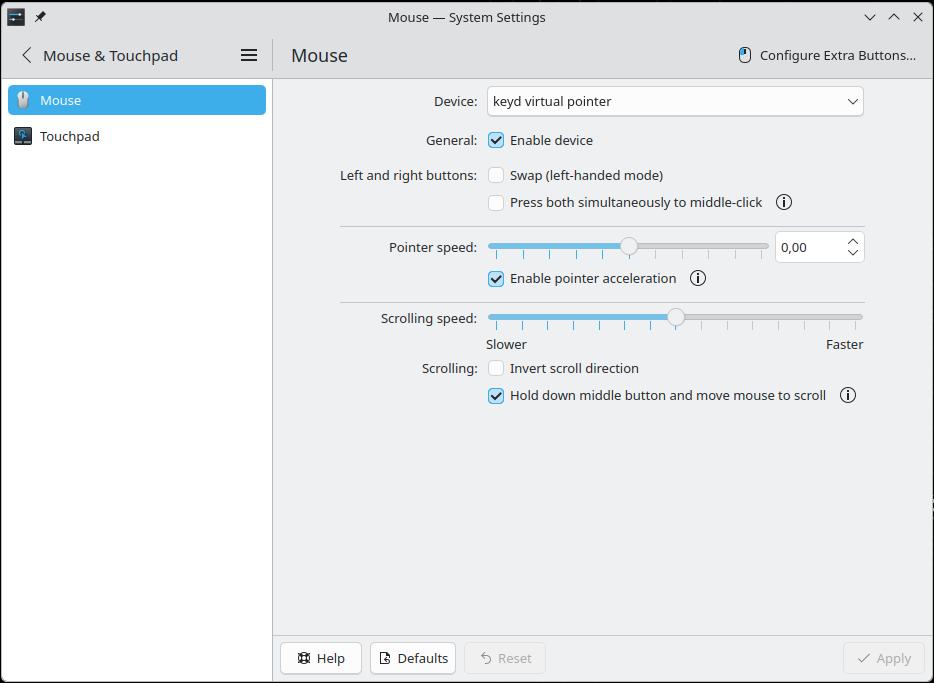
Check: if matching the settings resolves the problem, stop here. No DPI rule is needed.
If both devices use flat acceleration at the same speed, do not apply the DPI workaround to explain a remaining difference in that mode. A speed adjustment of zero alone does not disable adaptive acceleration.
Continue to step 4 if the difference persists with adaptive acceleration and step 2 identified a metadata mismatch.
4. Add the DPI rule
Before proceeding: the rule affects the shared keyd virtual pointer, not just one physical mouse. Use it only when movement comes from one mouse, or from mice that should all use the same DPI metadata.
It cannot represent different DPI settings for multiple managed mice simultaneously.
Open the local udev rules file:
sudoedit /etc/udev/rules.d/99-keyd-pointer-dpi.rules
Preserve any existing rules if the file already exists. Add the following, replacing the example DPI string with the entire value from your physical mouse:
ACTION!="remove", SUBSYSTEM=="input", KERNEL=="event[0-9]*", \
  ATTRS{name}=="keyd virtual pointer", \
  ENV{MOUSE_DPI}="1200@1000 *2400@1000 3200@1000 6400@1000"
Save the file.
Check: the quoted DPI string must match the value saved in step 2, including any asterisk. Do not use the G502 example unless it matches your mouse’s metadata.
5. Reload the rules and recreate the pointer
Run:
sudo udevadm control --reload-rules
sudo systemctl restart keyd
On systems without systemd, restart keyd using your service manager.
keyd reload is not enough. The virtual device must be recreated so libinput initializes it with the new property. This is a udev rule, not a hwdb entry, so there is no need to run systemd-hwdb update.
6. Verify the metadata and mouse movement
Find the event numbers again:
grep -H . /sys/class/input/event*/device/name
Repeat the DPI queries using the current event numbers:
# Replace both example event numbers:
udevadm info -q property -n /dev/input/event3 | grep '^MOUSE_DPI='
udevadm info -q property -n /dev/input/event23 | grep '^MOUSE_DPI='
Expected result: both commands print the same MOUSE_DPI value. If they do not, recheck the event numbers and the rule from step 4 before testing movement.
Then:
- Reopen KDE’s Mouse settings and confirm that both devices still have matching speed and acceleration profiles.
- Keep the mouse’s hardware DPI profile unchanged.
- Compare normal mouse use with keyd running and stopped. On a systemd system, use
sudo systemctl stop keydfor the stopped comparison, thensudo systemctl start keydto restore it. keyd remappings will be unavailable while it is stopped. - Leave keyd running when finished.
Check: the sensitivity difference should be resolved if missing or mismatched DPI metadata was its cause. If it remains, use the troubleshooting guidance at the end rather than changing the DPI value arbitrarily.
Optional check: inspect KDE’s active settings
To confirm the settings directly on Plasma Wayland, run this without sudo, substituting your current event numbers:
for dev in event3 event23; do
  echo "=== $dev ==="
  busctl --user introspect org.kde.KWin \
    "/org/kde/KWin/InputDevice/$dev" org.kde.KWin.InputDevice |
    grep -E '^\.(name|pointerAcceleration|pointerAccelerationProfileFlat|pointerAccelerationProfileAdaptive)[[:space:]]'
done
Expected result: pointerAcceleration and both profile booleans match between the two devices. These are KWin’s active settings, rather than a separate diagnostic tool’s defaults.
Example output:
=== event3 ===
.name                                         property s         "Logitech G502 HERO Gaming Mouse" emits-change
.pointerAcceleration                          property d         0                                 emits-change writable
.pointerAccelerationProfileAdaptive           property b         true                              emits-change writable
.pointerAccelerationProfileFlat               property b         false                             emits-change writable
=== event23 ===
.name                                         property s         "keyd virtual pointer"            emits-change
.pointerAcceleration                          property d         0                                 emits-change writable
.pointerAccelerationProfileAdaptive           property b         true                              emits-change writable
.pointerAccelerationProfileFlat               property b         false                             emits-change writable
Undoing the workaround
Remove only the rule you added. If you created the file solely for this workaround, remove it with:
sudo rm /etc/udev/rules.d/99-keyd-pointer-dpi.rules
Then reload the rules and recreate the virtual devices:
sudo udevadm control --reload-rules
sudo systemctl restart keyd
Summary
When mouse sensitivity changes with keyd, check both the desktop settings and the DPI metadata. The virtual pointer is a separate device, and identical speed sliders do not tell the whole story.
If the physical mouse declares DPI metadata but the virtual pointer does not, a matching udev rule can resolve the difference under adaptive acceleration without changing the mouse’s hardware settings.
The rule persists across reboots. For ordinary relative mice, libinput’s flat profile applies a constant factor without DPI normalization, which is why this workaround targets adaptive acceleration. Matching metadata and settings does not prove bit-for-bit equivalence of the complete motion pipeline: adaptive acceleration also depends on event timing.
If it still feels different, double-check the event nodes after restarting keyd and make sure you are inspecting the virtual pointer’s settings. When reporting the problem, include the keyd version, desktop/compositor, keyd configuration, both MOUSE_DPI results, and active speed/profile settings.